Creating a custom UITableViewCell in iOS 4

This post explains how to create a custom table view cell that you can design  in Interface Builder and Xcode 4. Not only are the cells designable in IB, but they also have a code file in which you can place Outlets and Actions for controls in the cell, and encapsulate the cell’s logic in what’s basically a “code-behind” file (in .NET parlance).

The example also supports having the custom cells recycled by the UITableView, which can drastically improve memory consumption for long lists.

This shows how to create custom cells for iOS 4 apps. According to rumors coming out of WWDC 2011, Apple is making this easier for us when building iOS 5 apps.

Download the sample code and concise walkthrough here:

https://github.com/ijoshsmith/CustomCellDemo

The following instructions assume you already have a project with a UITableViewController in which you want to display custom cells.

Step 1: Add a new ViewController file with a XIB but change the base class from UIViewController to UITableViewCell. Delete the generated methods in the new .M file that do not apply to a UITableViewCell (viewDidLoad, viewDidUnload, etc). In the sample project, I named the files DemoTableViewCell, but the name is up to you.

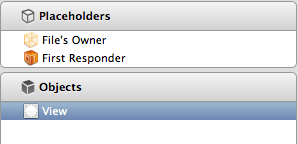
Step 2: Open the new XIB file and make the File’s Owner the UITableViewController class that will be creating the custom cell. First select the “File’s Owner” item in the Placeholders section.

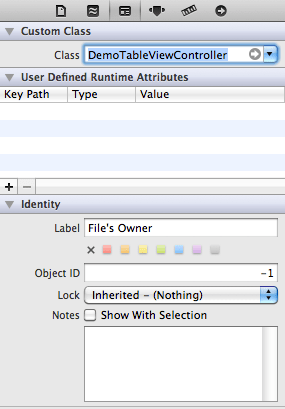
Then open the Utilities panel on the right side of Xcode 4, select the Identity Inspector icon, and then change the Class field to the name of the UITableViewController that will create/display this custom cell. In this example, I changed it to “DemoTableViewController”.

Step 3: Remove the File’s Owner’s link to the View outlet by clicking the ‘X’ button next to the word “View”.

Step 4: Select and delete the View in the XIB

Step 5: Locate Table View Cell in the Objects library and then drag one to the XIB’s design-time canvas.

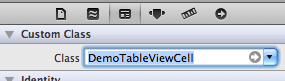
Step 6: In the Identity Inspector pane, change the cell’s Class to your custom cell class name.

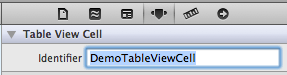
Step 7: Select the Cell on the design surface in IB, open the properties pane, and set the Identifier field to the name of your cell class. You should use the same identifier in the UITableViewController when trying to reuse instances of this cell via dequeueReusableCellWithIdentifier:.

Step 8: Assign Outlets and Actions to the Table View Cell object in IB, not File’s Owner like you normally would.

Step 9: Use UINib to create the XIB files for you when creating instances of table cells. UINib is more efficient than [[NSBundle mainBundle] loadNibNamed:…].  Refer to the code in DemoTableViewController in the sample project to see how to set this up.

Posted in Interface Builder, UITableView, Xcode 4 | 14 Comments

Reusable iOS user authentication view controller on GitHub

In my spare time I have been working on a View Controller that can be used to asynchronously authenticate user credentials (username and password). Your application provides the code that contacts a server to authenticate, and optionally replaces the user interface that gathers the username and password. Your authentication code is called on a background thread, so you can make a simple blocking call to the server to perform the authentication, without blocking the main thread. My LoginViewController class, with its associated View file, is complete and has been posted to GitHub. I created the iOSLogin project to host the files: https://github.com/ijoshsmith/iOSLogin

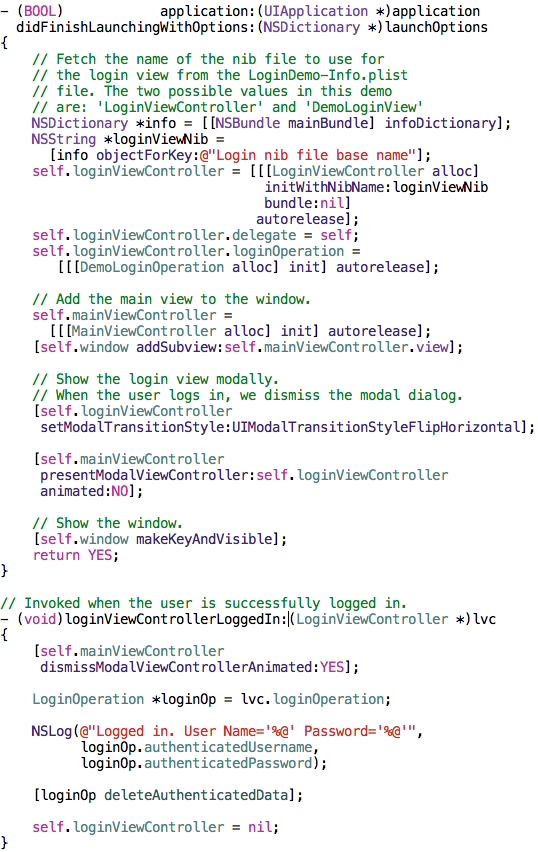
The following screenshot shows code from the demo’s app delegate file, which configures the LoginViewController and displays it in a modal dialog. Notice that the View used to render the LoginViewController is determined at runtime based on a config value from the bundle’s info plist.

I wrote a simple RESTful authentication service in WCF, which I hosted on my main desktop at home. The DemoLoginOperation has code that calls that service to perform authentication. It works like a champ, even if that service is unavailable.

If you’re interested in getting an overview of how the code works, let me know and I’ll consider writing one up.

Posted in Uncategorized | 3 Comments

Responder chain and routed events in CocoaTouch

After years of working with C#, .NET, WPF, and Silverlight I find iOS programming to be both wildly foreign and familiar, at the same time. It’s like studying ancient Rome, and understanding the Romans’ pride for their system of law and justice, yet to feel totally alienated by other aspects of their worldview (such as how brutally justice was often doled out). This post discusses the similarity and difference between CocoaTouch’s concept of the Responder Chain, and the WPF/Silverlight concept of Routed Events.

One of the concepts that any WPF or Silverlight programmer worth their salt knows intimately is routed events.

Similarly, any self-respecting iOS developer is well versed in the ways of the responder chain.

Both of these concepts exist, primarily, to process input events in a hierarchical user interface built of elements that can opt to “handle” an input event. In the .NET world, the implementation consists of UI element trees and routed events. In the CocoaTouch world, where MVC is built into the framework, things are a little different. The Controllers that, optionally, drive a View are also given a chance to respond to input events. If a Controller has a parent Controller, the parent gets a shot to handle the event, too. If an event is not handled by any View, Controller, or the Window, the Application singleton object is also given an opportunity.

In the .NET world a control is said to have “focus” when it is the initial target of user input. On the other hand, CocoaTouch has the concept of “first responder”, which is essentially the same thing. For all events other than touch events (such as when the user shakes the iPhone or presses the Pause button on their headset), the first responder in the responder chain gets notified first. If it can’t handle the event, the UIKit will carry the event up the chain notifying other responders, just like a bubbling routed event. For touch events the UIKit framework performs hit-testing to determine which element is the initial responder for the event.

There’s a lot more involved with CocoaTouch’s event infrastructure. If you are interested in learning more about it, start here.

Posted in CocoaTouch | Comments Off on Responder chain and routed events in CocoaTouch

Mediator design pattern in CocoaTouch

The CocoaTouch UI framework has its own built-in implementation of the Mediator design pattern, named NSNotificationCenter. You can use an instance of the NSNotificationCenter class to broadcast notifications to any objects that are interested in that particular event. Several components in CocoaTouch use this mechanism, such as how MPMoviePlayerController sends out notifications when a movie starts and stops.

To a .NET developer this might seem like a strange and inconvenient way to raise and handle an event on an object. In one sense, that is true. Since Objective-C does not have first-class support for constrained multicast delegates (i.e. events) like most .NET languages, you can instead use NSNotificationCenter to publish something to other entities, pass related arguments, and a include back pointer to the object that published the notification. Sounds like events, right?

To a certain extent that is true. However, NSNotificationCenter is not a substitute for events.  It is an implementation of the Mediator design pattern, much like the Messenger class in my MVVM Foundation library (used by WPF developers). It provides an externalized event source, which helps reduce coupling between publisher objects and subscriber objects.

The difference between .NET events and a Mediator, regardless of the platform, is that an event can only be raised by the object that owns the event.  This requires all subscribers to reference the event publisher object, thus increasing the system’s self-awareness. I don’t mean to imply that .NET events are a bad thing, but in some situations simpler designs can be achieved by using a third party to broker events between parties.

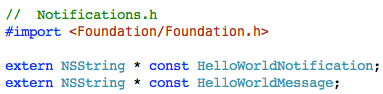
Enough pontification, now let’s look at an example of using this cool class. First let’s declare the name of a custom notification and the name of the dictionary entry that stores the ‘message’ argument passed to the notification recipients.

Now we will head over to the implementation file and define those values…

Obviously the value of those strings don’t matter, so long as they’re unique within the scope of my application. Technically it is not necessary to take the extra step of defining these string identifiers in a separate file, you could just hard-code the values into your methods, repeating the values wherever needed. But that would make the person who maintains your code want to viciously murder you in your sleep.

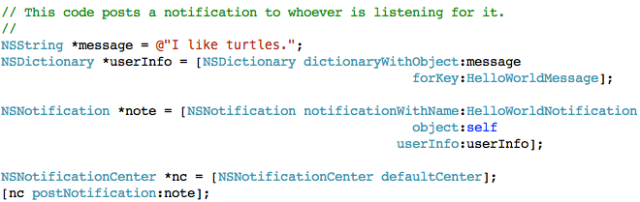
Next let’s see how to send out a notification using NSNotificationCenter.

Last but not least, the subscriber code.

That’s all for this post.

Posted in CocoaTouch, Objective-C | 7 Comments

Two Letters is now available in the App Store

My iPhone app called Two Letters is now available in the App Store.  Two Letters is a game for Scrabble and crossword puzzle lovers who want to learn and memorize the two-letter words.  Learning the two-letter words is important for serious Scrabble players, and this app makes it fun to learn them.  The home page for the app can be found here: https://ijoshsmith.com/twoletters/

Have a great day!

Posted in Uncategorized | 2 Comments

Two Letters app submitted to the App Store

Over the past couple of weeks I have been working hard on an iPhone app called ‘Two Letters.’ It is intended to be used by Scrabble players and crossword aficionados who want to learn and memorize two-letter words. If you are a Scrabble player, you know how important it is to master the two-letter words.  My app allows you to play a game that helps you memorize those words.

I just finished the very time consuming process of submitting my first app to the App Store. Hopefully they won’t reject it! I’ll let you know when it’s finally available in the App Store…

Here are some screenshots of my new creation.  The main view contains the game screen. You tap on the tiles up top to select two-letter words. After tapping two tiles whose letters form a valid word, it gets added to the list below.

As seen above, the most recently tapped tile is lifted up a bit. Also, the most recently selected word is highlighted orange in the word list. This makes it easy to find out the definition of a word you selected.

If you click on the info icon (bottom right corner) the UI flips over and reveals a full listing of every valid two-letter word. Some of them are quite strange; such as OD, which is ‘a hypothetical vital energy.’ But they’re all valid two-letter words nonetheless!

I learned a lot about iPhone programming while working on Two Letters. Plenty of material for upcoming blog posts.  😉

Have a great day!

UPDATE: Two Letters is now available in the App Store: http://itunes.apple.com/app/two-letters/id404274803

Posted in Two Letters | 2 Comments

Anonymous categories to the rescue

One of the things about Objective-C that seems a bit archaic to me is methods must be declared before they are called by other methods in the same code file. If you don’t, the compiler emits warnings. This is a remnant from classic C programming, which I have always found annoying. This limitation requires helper methods to be at the top of a code file, and the most important methods to be all the way down at the bottom. I prefer it the other way around.

Fortunately, Objective-C provides a solution for this issue in the form of anonymous categories. In case you are not familiar with categories yet, check out my post about them here. An anonymous category is one that has no name in between the parenthesis, such as:

@interface MyClassName ()

// method declarations go here…

@end

Here is an example of a situation that can benefit from this trick.  First look at my Foo class’s header file:

The implementation of that class is seen below:

Notice the compiler warning. If I moved the helpOut method above the doSomething method, the warning would go away.  But then my helper methods would be at the top of the file, which is what I want to avoid. So, to fix the problem, I declare my helper methods in an anonymous category just above the class to which it applies:

Now my helper methods can go below my primary methods, and all is well in the world.

Posted in Objective-C | 3 Comments

Gradually becoming competent at Apple programming

I have been chipping away at Objective-C, Cocoa, CocoaTouch, and MonoTouch for the past few weeks.  Using MonoTouch at work has given me a false sense of confidence about my ability to write iPhone applications on the native platform. For a C# developer like myself, working with MonoTouch allows me to continue using a tool and language that I’m familiar with (MonoDevelop is pretty similar to Visual Studio).

That’s all well and good until I try to write an iPhone application in Xcode using Objective-C. Suddenly I’m back in the weeds again, struggling to do things that are second nature when working in C# (ex. working with strings). To combat that horrible feeling of incompetence and ignorance, I have been reading several books about Apple programming. I just finished reading “Learn Objective-C on the Mac” and found it to be very good. In order to understand the motivations behind the Cocoa and CocoaTouch UI frameworks, I am reading “Cocoa Design Patterns” and enjoying it immensely. Last but definitely not least, I recently started focusing specifically on iPhone programming. After evaluating the huge number of iPhone programming books out there, I decided to invest in “iPhone Programming – The Big Nerd Ranch Guide.” It is a very highly rated book, but I’m not far enough into it yet to give my impression.

Obviously I can read as many books as I want, but that won’t make me a competent Apple programmer. The real learning comes from working on apps; debugging in particular. Luckily for me, working on apps is my favorite part!

There is so much to learn that it can be daunting. From a tooling perspective, I need to become familiar with Xcode (the IDE) and Interface Builder (the GUI builder). From a language perspective, I need to learn how to use Objective-C, which entails learning the memory management practices (which is a big topic unto itself!). Let’s not forget that there’s also the UI frameworks: Cocoa (desktop) and CocoaTouch (iPhone/iPad/iPod).

It’s very exciting to have so many cool new things to learn about! I’ll keep you posted…

Posted in Books | 7 Comments

Displaying a video on the iPad using MonoTouch

I had trouble finding a good tutorial about showing a video on the iPad in a MonoTouch application.  After digging through lots of semi-helpful posts online, I finally figured out how to do it.  This blog post is intended to help fill that gap in the MonoTouch examples available online.

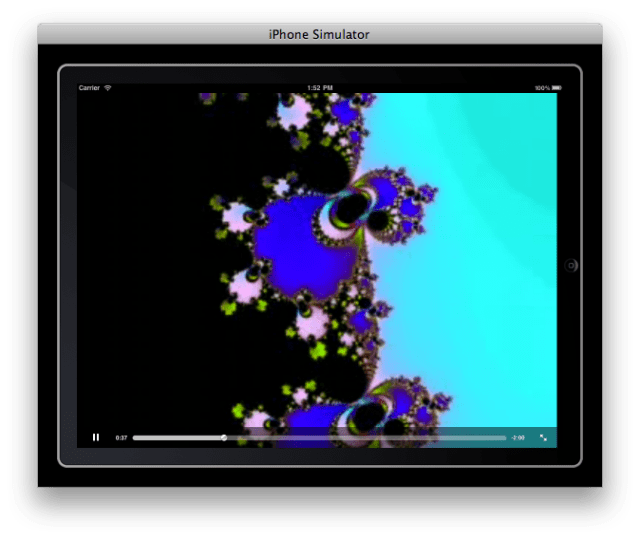
When the application runs and displays a video showing a fractal, it looks something like this:

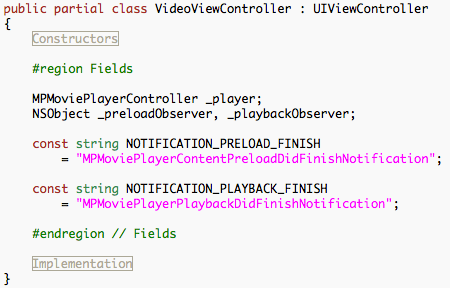
Here’s how you can implement this application. First open MonoDevelop and create a new “iPad Window-based Application” project. Then add a new “iPad View with Controller” item to the project named VideoViewController.  Once the files have been added to the project, open VideoViewController.xib.cs and add these fields to the class.

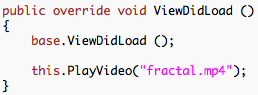
Next we will override the controller’s ViewDidLoad method, and put in a line of code that calls a PlayVideo method which will be added soon.

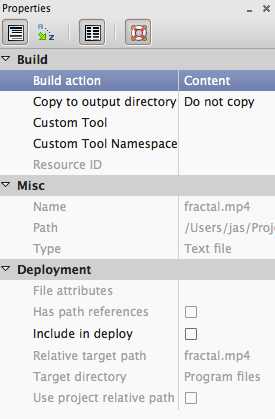
The video file name references a video file that you must add to your project.  Be sure to set the video’s Build Action to ‘Content’ so that it gets packaged into the .app file created by the compilation process.

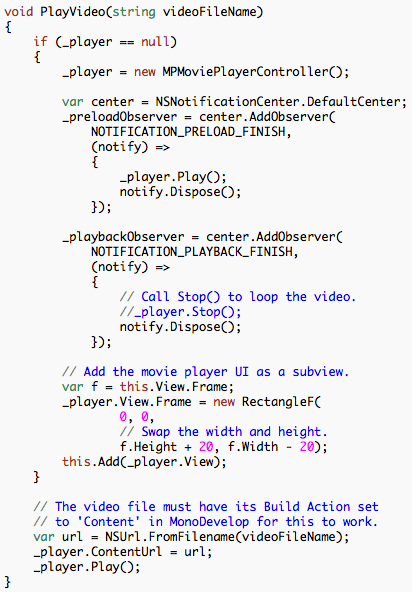
Now let’s write that PlayVideo method we saw earlier:

That code sets up the video player, which is a standard control in the CocoaTouch UI toolkit.  MonoTouch wraps it up nicely into a managed wrapper class that is fairly straightforward to use.  Note that when setting the View’s Frame (which explains where it exists on the screen and how big it is) I swap the width and height of the parent view. This is because I only want the video to display in “landscape orientation.” That means the video will only be upright when the user holds the iPad horizontally (i.e. the circular button on the device is to the right or left of the screen). We will see how to support that behavior later.

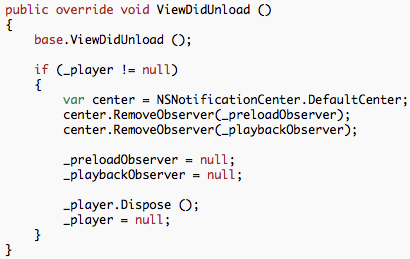
Next let’s write the clean up code.

That code unregisters for the event notifications we subscribed to in the PlayVideo method, and throws away objects that are no longer needed.

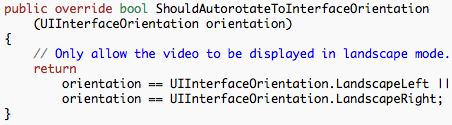
The next method, also in the VideoViewController class, ensures that the video will only be shown in landscape orientation.

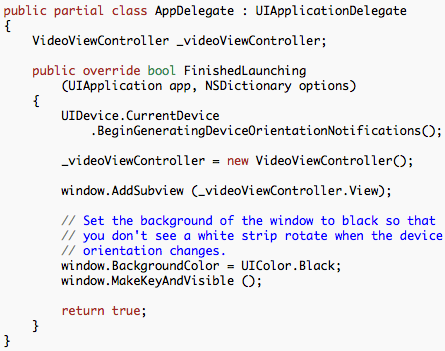
Lastly we have the AppDelegate class, which creates a VideoViewController and displays it in the window.

The first line of the FinishedLaunching method turns on system notifications of orientation changes.  In other words, this allows our UI to do an animated rotation when the user rotates the iPad.

You can download the VideoViewController code here, then remove the .DOC file extension and open it as a .TXT file: VideoViewController source code (REMOVE .DOC EXTENSION)

Posted in MonoTouch | 4 Comments

Using UINavigationController in MonoTouch

This blog post is a walkthrough for setting up an iPhone application that uses UINavigationController to move between two screens. It shows how to use MonoDevelop and Interface Builder to create the application. MonoTouch is Novell’s implementation of the .NET framework that runs on Apple’s mobile devices, and provides a managed wrapper around Apple’s CocoaTouch UI toolkit. It allows you to write iPhone apps in C#. Interface Builder (IB) is Apple’s drag-and-drop designer for creating UIs, like Expression Blend in the Microsoft world. When you install MonoTouch part of the installation process requires IB to be installed as well.

First let’s see the demo application in action.  When it launches you see the “home” screen:

After tapping the “Go to sub view” button the “sub” view slides into place:

The first step is to start MonoDevelop (which is the Visual Studio for Mono developers). Create a new iPhone Window-based project:

Right-click on the project in the Solution window and select Add | New File… | iPhone View with Controller.  Name the new item HomeViewController, as seen below:

Then add another iPhone View with Controller to the project, this time name it SubViewController:

After you have completed the previous steps, your Solution window should look like this:

At this point we have two empty views (and controllers) that we can display in our iPhone application. By default they will not be shown, so we need to hook up a UINavigationController object in the application that will show and hide these views. UINavigationController maintains a stack of UIViewController objects and allows you to programmatically specify which controller/view to show. We can easily add one to our program in Interface Builder.  To open IB, double-click on MainWindow.xib in MonoDevelop’s Solution window. Once it is open, click the Objects tab in the Library window, locate the “Navigation Controller” item, and drag-drop it onto the MainWindow.xib window.  After doing that, your screen should look something like this:

Next we need a way to reference that UINavigationController object from our AppDelegate class.  AppDelegate is the CocoaTouch equivalent of the Application class in WPF and Silverlight programs. In order to have a reference to the nav controller, we must add an “outlet” to the AppDelegate class.  An outlet is the way that Interface Builder allows you to reference the UI objects it creates from your code.

To add the outlet, go to the Library window, select the Classes tab, search for “appdel” in the search box below, and the select the “AppDelegate” item from the list. Then open the dropdown box and select “Outlets” to view the list of outlets. Click the “+” button to add a new outlet, name it “navController” and set the Type to “UINavigationController.”  The result should look like this:

At this point we have indicated that our program’s AppDelegate class (which was created for us by MonoDevelop) has a property called ‘navController’ of type UINavigationController.  Next we need to explain to Interface Builder where our AppDelegate instance get its value from.  To do that, go to the MainWindow.xib window, right-click on the App Delegate object, and the Outlets window will appear.

Notice that our ‘navController’ outlet is in the list, but it is not connected to anything yet. To connect it to a UINavigationController instance, click on the empty circle on the right and drag it over the “Navigation Controller” item beneath the “App Delegate” item.

That bluish line appears as you drag from the empty circle to a UINavigationController object on the screen. When you release the left mouse button, the outlet will be connected to the object under the mouse cursor.

At this point our AppDelegate class can reference the UINavigationController that we added to MainWindow.  We will see why this is necessary later.  For now, let’s start setting up the navigation controller so that it knows what view to display first.  To do that, expand the Navigation Controller item in the MainWindow.xib window and select the Root View Controller item.  Then go to the Attributes windows and set NIB Name to “HomeViewController” so that the navigation controller knows which XIB to initially load (a NIB is a “compiled” XIB, similar to how BAML is compiled XAML in WPF).

IMPORTANT: Be sure to next select the ‘Identity’ tab on the right and set the Class to “HomeViewController” as well.  If you don’t do this, after adding outlets to the HomeViewController, you will get a runtime error of “this class is not key value coding-compliant for the key XXX.”  That error occurs because the default Class of the root view controller is UIViewController, which does not have your outlets defined on it.  By specifying the Class of the controller, the correct type information will be used at runtime and the error will not occur.

After you configure the controller as described above, the Root View Controller design surface indicates where the root/initial View comes from, as seen below:

Now it’s time to create the Home screen.  Go back into MonoDevelop, open the Solution window, and double-click on HomeViewController.xib to open it in Interface Builder. Once it’s open, drag a UIButton from the Library onto the View that opened for the HomeViewController. Change the button’s text to “Go to sub view.”

Next add an outlet to HomeViewController called “subViewButton” of type UIButton.

It’s time to hook up that new outlet to the “Go to sub view” button created earlier. To do that, go to the HomeViewController.xib window, right-click the “File’s Owner” item, and drag from the new outlet to the UIButton item.

We’re done setting up the HomeViewController.  Next go back into MonoDevelop and double-click the SubViewController.xib file in Solution window to open it in IB.  Drag a UIButton onto the new View, and change its text to “Go home.”  Add an outlet to SubViewController called “homeButton” of type UIButton.  Then connect that outlet to the button on the view.  Note that in the screenshot below I’m connecting it to the button on the design surface, which has the same effect as the approach used before:

We are done using Interface Builder, so save and go back to MonoDevelop. Open Main.cs and include the line of code that adds the navController’s View as a sub-view of the window. This is how our “home” view is added to the UI.

The ‘navController’ property is available because we added an outlet to our AppDelegate class. The view that it references is our home view. We must now write some code that causes that view’s button to navigate to the SubView.

Lastly we must add code to SubViewController that makes the “Go home” button work.

That’s it, we are done!

Posted in Interface Builder, MonoTouch | 6 Comments