Categories in Objective-C

Objective-C has a feature called “categories” that allows you to extend the API of a type. It’s somewhat similar to extension methods in C# in that you can define methods which can be invoked on an instance of some class you don’t necessarily have the ability to modify.  For example, you can add methods to NSString or NSArray.  The differences, though, between extension methods and categories are quite revealing.

First off, the methods in a category are treated just like methods defined in the class targeted by the category.  Instance methods in a category reference a ‘self’ pointer (similar to ‘this’ in C#) that points to the object of the target type. They can access private members of the target object.  It looks and feels just like a normal instance method of the target type, only the method is defined in a separate file.  You can also put class (static) methods in a category, which are invoked just like a class method of the target type.

Another thing to know about categories is that they can contain methods that override methods inherited from the target class’s base type(s).  This is a strange concept at first, but it makes more sense once you know that categories are often used to break apart the implementation of large classes.  Unlike extension methods in C#, which are rarely (if ever) used to implement core functionality of a class, categories are a great way to separate logical groups of methods into different source code files.  You cannot add fields to a class from a category, but you can add as many methods as you want.

Now let’s see an example of categories in action.  We’ll start with the demo app’s main function:

The Person class is declared in this header file:

It contains a getter and setter for the ‘name’ field.  It also declares a method called sayHi. Note: Objective-C convention is to not prepend ‘get’ on a getter method if it returns a field, as seen above. Also, a class is allowed to have a method and a field with the same name.  Now let’s look at how the Person class is defined in the .m file:

As you can see, that class does not define the eat: method invoked by main(). That’s where this demo’s category comes into play.  The Consumption category is declared below:

First note that this file’s name is Person+Consumption.h. The naming convention is <class name>+<category name>.ext for files that contain categories.  The @interface is followed by the target type; Person, in this example.  Following that is the name of the category surrounded by parentheses.  The body of the @interface contains declarations of the methods in the category.  Now let’s see how the category is defined:

The category definition contains the eat: method declared previously, which is no surprise.  It also contains an override of the init method inherited from NSObject.  I doubt this is a good practice, but this at least proves it’s possible to override a method from a category.

Here is the result of running the demo program:

To learn more about categories, check out this blog post and the official docs from Apple.


Posted in Objective-C | 7 Comments

Messages and methods in Objective-C

After experimenting with Objective-C for a while now, I find the language is gradually growing on me.  It’s still a bit strange in some spots, and I have a lot left to learn, but it’s starting to make sense.  One of the things I really like about the language is a feature lifted from Smalltalk: using “infix” syntax to send a message.

// invoking a MyCalculator method (by sending it a message)
int sum = [MyCalculator add:29 to:13];

In my previous post I touched on what it means to send a message in Objective-C.  I explained that method calls on a class or object are mediated by a message dispatcher at runtime.  This means that method calls are more involved than just dereferencing a function pointer.  A lookup process occurs, the results of which are cached for subsequent messages.  Objective-C is a superset of traditional C, so you can still call global functions without sending any messages.  Messages only enter the picture when you start dealing with the object-oriented features of the language.

The message being sent above ends up causing a class method to be called on the MyCalculator class.  Objective-C refers to them as “class” methods, not “static” methods like in C#.  The name of the method is add:to: which might take a moment to digest.  As you saw in the code snippet, the method name is broken apart and woven into the argument list.  When you refer to the method, you add all of the pieces together, including the colons.  If the method didn’t take any parameters you would omit the colon altogether.

Here’s the declaration of the MyCalculator class:

#import <Cocoa/Cocoa.h>

@interface MyCalculator : NSObject

+ (int) add:(int) left to:(int) right;

@end

The + sign indicates that add:to: is a class method.  The first (int) means that this method returns an integer.  The rest of the line is the method name, intermixed with the argument list.  I find this style of naming a method to be very intuitive, after getting used to it.  I find myself thinking about naming methods based on the parameters much more carefully and making interesting decisions that I’d never make in C#.

In case you’re interested, here’s the implementation of the MyCalculator class:

#import “MyCalculator.h”

@implementation MyCalculator

+ (int) add:(int) left to:(int) right
{
return left + right;
}

@end

See you next time!

Posted in Objective-C | 7 Comments

Dissecting an NSArray

Objective-C is based on good old C.  It also has support for object oriented programming, such as classes, virtual methods, and lots of the goodies I’m accustomed to using in C#. One of the classes included in the Foundation library is NSArray.  It’s basically like a read-only ArrayList in the .NET Framework.

This is an array of strings, Objective-C style:

NSArray * array = [NSArray arrayWithObjects:@"Foo", @"Bar", nil];

For a .NET developer, that line of code might look pretty strange.  Let’s break it apart piece by piece so that it makes more sense.

  1. What’s up with that NS prefix on the type name?  It’s a remnant of NeXT Software’s API  from their NeXTStep operating system, which Mac OS X is based on.  You’ll find that Apple framework classes use all-caps prefixes all the time.
  2. The * means that the ‘array’ variable is a pointer to an NSArray object.  If you don’t know what a pointer is, I suggest you study up on it before getting into Objective-C much further.  It’s sort of like an object reference in .NET programming, in that it can be used to find an object in memory, but pointers can be used and abused in ways that references cannot (it’s beyond the scope of this post to review pointers).
  3. Those [brackets] following the assignment operator indicate that a message is being sent.  Sending a message is similar to, but not the same as, calling a method.  The end result of sending a message to an object, or a class in this case, is that a method will be invoked if the Objective-C message dispatcher can find a suitable method to invoke; otherwise it throws an error.  Also, if you send a message to nil (i.e. a null pointer) it does not crash your app.  It just does nothing and keeps on running.  In other words, method calls are mediated by a message dispatcher at runtime.  This helps the language be very flexible, at the cost of type safety.
  4. What’s that ‘arrayWithObjects:‘ all about?  That is the message being sent to the NSArray class.  It causes an immutable array to be created that contains whatever objects are in the parameter listing that follows the colon.
  5. Note the @ sign before each string.  That indicates the string is an NSString, instead of a C-style string.
  6. Last but not least, the final item in the array is nil.  That is required by NSArray, and other Foundation collection classes.  It basically just puts a zero (0) into the last slot of the array, so that other code can figure out where the array ends.

In case you’re wondering how to loop over the contents of the array, the following loop shows it in action.  It writes each string to the Console window.

for(NSString * s in array)
{
NSLog(@"%@", s);
}

Another point of interest is that the Foundation collection classes won’t let you put primitive C values (like an int or char) into them.  In C# you can add/remove a value type to/from a collection of object references, like ArrayList, because it automatically performs boxing and unboxing for you.  In Objective-C you must do that work yourself.  If you wanted to put, say, an integer into an NSArray, you would box it into an NSNumber object.

If you need to be able to add and remove items, NSArray is not the right collection to use. Instead you need to create an NSMutableArray, which is like an ArrayList in the .NET world.  We’ll explore that class in a future post.

I’m starting to enjoy Objective-C, despite how strange it seems to a hardened C# developer like myself.  I’ll keep you posted with other tidbits and etceteras and such as I keep learning more.  That’s enough for tonight.  Over and out.

Posted in Objective-C | 11 Comments

The art of unpacking a MacBook Pro

My new MacBook Pro arrived at our apartment today.  I’m very excited!  It’s a killer machine:

  • PROCESSOR: 2.66GHz Intel Core i7
  • MEMORY: 8GB 1066MHz DDR3 SDRM – 2x4GB
  • HARD DRIVE: 128GB Solid State Drive
  • DISPLAY: 15″ HR Antiglare WS Display
I’m so excited to have a Solid State Drive (SSD).  The machine screams!!

Before I go on a coding bender, I thought it was important to carefully explain how one goes about unpacking a MacBook Pro.  First, you must find a box that could possibly contain an Apple computer.  I typically look for a box with a small bust of Johann Sebastian Bach on top.

The next step is to cut the box open and check what’s inside.

Much to my surprise, I actually found a new MacBook Pro in the box!  What are the odds?

The next step is a bit tricky.  You must figure out some way to remove the inner box from the outer box.  This one took me a while to figure out, it’s a bit like a puzzle.  I’ll give you a tip…the trick is to lift up.  Once you manage to solve that riddle, you’re one step closer to having your very own MacBook Pro.
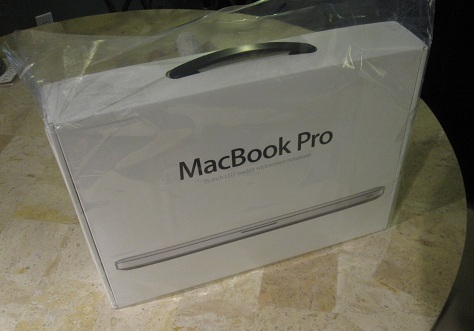
At this point you must check the inner box very carefully.  Make sure you haven’t brought any unwanted guests to the party.  I discovered a spy who had somehow snuck his way into my home.

He escaped before I could catch him.  It’s OK, because at this point I was so excited about my new machine that I forgot all about him.
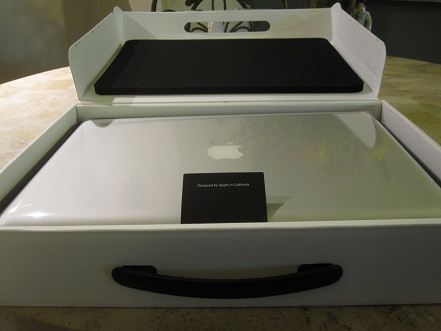
After I cracked my new MacBook Pro open it only took a minute or two to set it up.  Every aspect of the experience was smooth, polished, and beautiful.  And fast.  Did I mention that this box is insanely fast??  Because it is. 🙂


Once the machine was configured it was ready to go.  No ugly annoying OEM-installed crapware asking me to register, update, sign up, etc.  The machine simply went into its ready state and waited for me to floor it.

Not only is it fast as Hell, but it’s a really slick looking device, too.

To top off the pure elation of introducing this awesome piece of technology into my life, I had no choice but to gather the troops, pour a glass of scotch whisky, and smile!

Posted in MacBook Pro | 19 Comments

Basic Xcode 3 keyboard shortcuts

While learning Objective-C it is natural to also learn about Xcode, Apple’s free IDE. Coming from a firmly entrenched background of using Visual Studio, and all of the standard keyboard shortcuts it provides, it is rather frustrating to suddenly be clueless how to do the most basic things from the keyboard.

This post is a cheat sheet for some of the most common shortcuts on which I depend. There are far more comprehensive shortcut listings available on the Web, but I prefer a shorter listing of only things I currently care about.  As I find other indispensable nuggets of awesomeness in Xcode 3 I’ll update this listing.

Getting Help
Option-DoubleClick = search for the clicked symbol/name in the documentation
⌘-Option-? = open developer documentation files. Note: the ? key is actually Shift-/

Text Navigation
Ctrl-F = move cursor Forward one character (same as RightArrow key)
Ctrl-B = move cursor Backward one character (same as LeftArrow key)
Ctrl-Option-F = move cursor Forward one word (same as Option-RightArrow key)
Ctrl-Option-B = move cursor Backward one word (same as Option-LeftArrow key)
Ctrl-P = move cursor to Previous line (same as UpArrow key)
Ctrl-N = move cursor to Next line (same as DownArrow key)
Ctrl-A = move cursor to the stArt of the line (same as ⌘-LeftArrow)
Ctrl-E = move cursor to the End of the line (same as ⌘-RightArrow)
Ctrl-L = aLign the document so that the cursor is centered in the editor
⌘-D = Drop a bookmark at the current line
⌘-L = goto a Line number or character
⌘-Option-UpArrow = open the counterpart file (open .h file from .m file, or vice versa)

Text Editing
Ctrl-D = Delete the character to the right of the cursor
Ctrl-K = delete/Kill the line
⌘-] = indent the selected code one level
⌘-[ = unindent the selected code one level
Tab = apply the suggested completion value // like IntelliSense in VS
Ctrl-/ = move to the next completion placeholder
Esc = show the unfiltered completion menu // like Ctrl-Spacebar in VS
Ctrl-. (period) = scroll down the completion list (same as DownArrow key)
Ctrl-Shift-. (period) = scroll up the completion list (same as UpArrow key)

Debugging
⌘-Y = run with debugger attached, to figure out WHY the app has a bug
⌘-O = step Over
⌘-I = step Into
⌘-T = step ouT
⌘-P = Proceed with execution (i.e. continue running the app)

Posted in XCode 3 | 7 Comments

Starting all over again

Hi.  I’m Josh Smith, and I’m addicted to creating software.  Here’s my mugshot:

Josh

That's me!

I have been a professional software developer for the past seven years.  During that time I have worked exclusively on Microsoft platforms, mostly the .NET framework.  I have been a Microsoft MVP for the past four years, maintained a rather popular blog about WPF and Silverlight,  wrote many articles, self-published a book, and have generally enjoyed the ride.  But then I noticed something…

Writing on the wall

A lot of people use, and love, Apple products.  I mean, a lot of people.  There are people using iPhones everywhere I look.  Every coffee shop, book store, airport terminal, and men’s room (can’t speak for the women’s room) is chock full of MacBooks, iPads, and the like.  I don’t see nearly as many Windows machines as I do Macs out in the wild.

That got me thinking about the big picture; as in “What can I do to improve my career, 5 or 10 years from now?”  I assume you see where this is headed.  Don’t get me wrong, I still have a ton of respect for some of the platforms that Microsoft puts out.  WPF is just plain brilliant!  But there’s more to life than Microsoft, and there’s more to a successful career than keeping all of one’s eggs in a single basket.

This blog will document my journey of learning how to develop software that runs on Apple’s hardware.  I hope it proves useful or at least interesting to other .NET developers interested in taking the leap to Apple programming.

I’m currently reading ‘Learn Objective-C on the Mac‘ in order to come up to speed with the basics of talking to an Apple device.  My pile-o-books also has ‘XCode 3 Unleashed‘ and ‘Cocoa Design Patterns‘ weighing it down.  I’ll get to those soon enough.  See you later!

Posted in Uncategorized | 25 Comments